
 Tools and a framework to build and manage application-specific data models including types, objects, names, and spatial properties
Summary
In SmartSpace, object types are used to model real-world entities. An object type has properties (sometimes also called attributes), which reflect the entity’s structure. Properties are defined using built-in types or other object types. Creating a collection of types and assigning them properties that are relevant to an application is called data modeling. The first level of data modeling in SmartSpace is type and object definition. This feature allows application developers to define new types (such as product, process, trolley, forklift) and give them two fundamental properties: a name and optional spatial properties (or spaces). When building a new application, the name property is used to give every object instance of a type a unique identifier, while spaces are used in spatial relations between object types (see Spatial relationship definition). Where an object type is involved in more than one spatial relationship, it is possible to give the type multiple different spaces to match each desired spatial relationship. With the licensing of [Business object properties](../Visibility/business- object-properties-for-visibility.htm), user-defined types can be created with additional properties. These can be any of the basic numeric or string types as well as user-defined types already created within the data model. Additionally more complex relationships between properties can be defined. The SmartSpace configuration client includes a types and objects creation GUI.Types and objects
Introduction to Types and Objects
A critical first step in creating a new SmartSpace application is to design and implement your data model and object model. With SmartSpace you can create new domain-specific object types to use in building taxonomies, modeling entities and referring to real-world objects. At the most basic level, all new types are Ubisense Objects which can be assigned two simple properties. These properties (also sometimes referred to as attributes) are a unique identifier (a name) and, where applicable, one or more space properties. Space properties and their purpose are discussed in Spatial monitoring. Ubisense type creation follows standard object-oriented best practice, including single and multiple inheritance. This means that new types can inherit from several different types to include all the properties of the parents, and can satisfy ‘is a’ type checking wherever types of the parent class are referred to. As well as using Ubisense Objects, you can also create types using other Ubisense-supplied types. These are described below. In your data model, you can only use Ubisense types associated with features you have licensed.Ubisense Types
Below are the Ubisense types and the components or features to which they belong:| Ubisense type | Description |
|---|---|
| Core | |
| Ubisense Object | Ubisense Object is the most basic type and in the absence of any more complex types is the basis for all new data model types. See Creating a custom type and adding a space property for an example of configuring a custom data type. This type allows you to create custom data types which have a unique name and optionally include one or many space properties allowing the type to be included in different SmartSpace spatial relations. |
| Visibility | |
| Sensor | Used by Visibility. Sensors created in LSC are copied to SmartSpace as type Sensor, along with the name, position and label of the sensors. See Location system sync for how to use this type. |
| Location rules | |
| Assertion Area | Used in Robust location. Assertion area has two main functions: to group together assertion points with the same configuration parameters and to control a set of objects which can be located at one of its assertion points. See Robust assertion points for how to use this type. |
| Assertion Point | Used in Robust location. Assertion points report when an object is at a given place, using strong evidence, including distance from the point and the speed at which the object is moving. See Robust assertion points for how to use this type. |
| Parking Area | Used in Parking bay snapping. Parking Area is derived from Assertion Area and inherits all spatial properties, parameters and assertions from Assertion Area; and these inherited configurations have the same function. See Parking for how to use this type. |
| Parking Bay | Used in Parking bay snapping. Parking Bay is derived from Assertion Point and inherits all spatial properties, parameters and assertions from Assertion Point; and these inherited configurations have the same function. See Parking for how to use this type. |
| Tag Association Point | Used in Automated tag association. During automated tag association a sequence of objects created from an external source are assigned to tags detected at a Tag Association Point. See Automated tag association for how to use this type. |
| Room snapping | |
| Building | Used in Room snapping to group rooms and doorways. See Configuring Room snapping. |
| Doorway | Used in Room snapping to define a space through which tags can pass between rooms. See Configuring Room snapping. |
| Room | Used in Room snapping to define areas inside of which tags are snapped to locations. See Configuring Room snapping. |
Creating a custom type and adding a space property
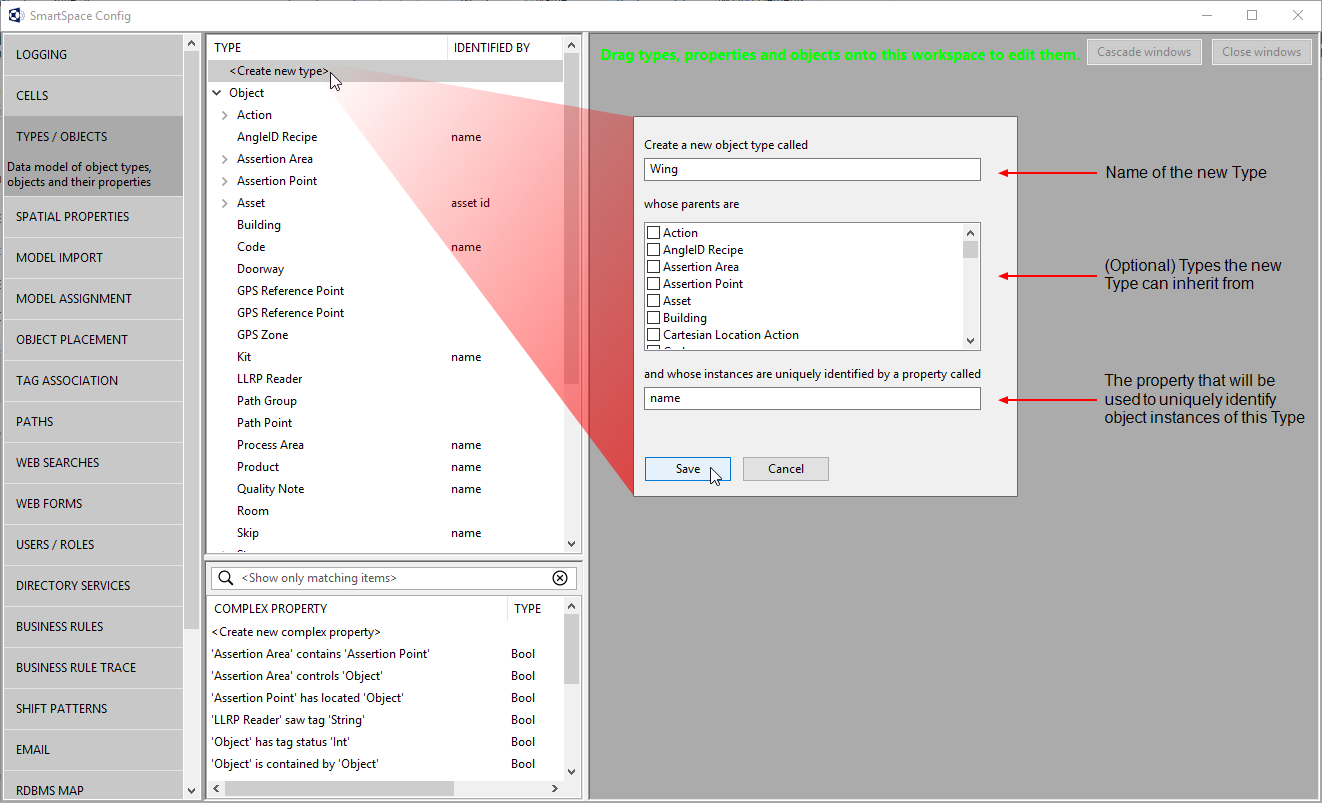
Types and objects are created using the SmartSpace Config application. You can find a description of the workspace for creating types and objects in [Types and objects](../../BuildandCreate/TypesAndObjects/types-and-objects- configuration.htm). The instructions below take you through creating a type, giving it a name, and adding a spatial property. To create a new type, click on TYPES / OBJECTS to open the Types and objects workspace and double-click <Create new type>. This will display the type creation dialog. At this point you must:- Give your new Type a name.
- Decide whether you want the type to inherit from any existing types.
- Give your new type a property with which instances of the object can be uniquely identified, .i.e. a “name” or “UID” property.
- Click Save.
 If you want to add a space property to your new type, select the type in the
top half of the Types and properties list and double-click the <Create new
property> option in the lower half.
This will pop up the property creation dialog. From here you must:
If you want to add a space property to your new type, select the type in the
top half of the Types and properties list and double-click the <Create new
property> option in the lower half.
This will pop up the property creation dialog. From here you must:
- Give the new property a name. Because we are creating a property of type Space, it is good practice to use the term “extent” or “space” as part of the name.
- At which is managed by you can select the service which manages this property. Accept the default option of the site-level object property data service. In general, you should accept the default, but see Ubisense Real-Time Rules: Concepts and Configuration for further information.
- From the dropdown menu, choose Space as the property’s type.
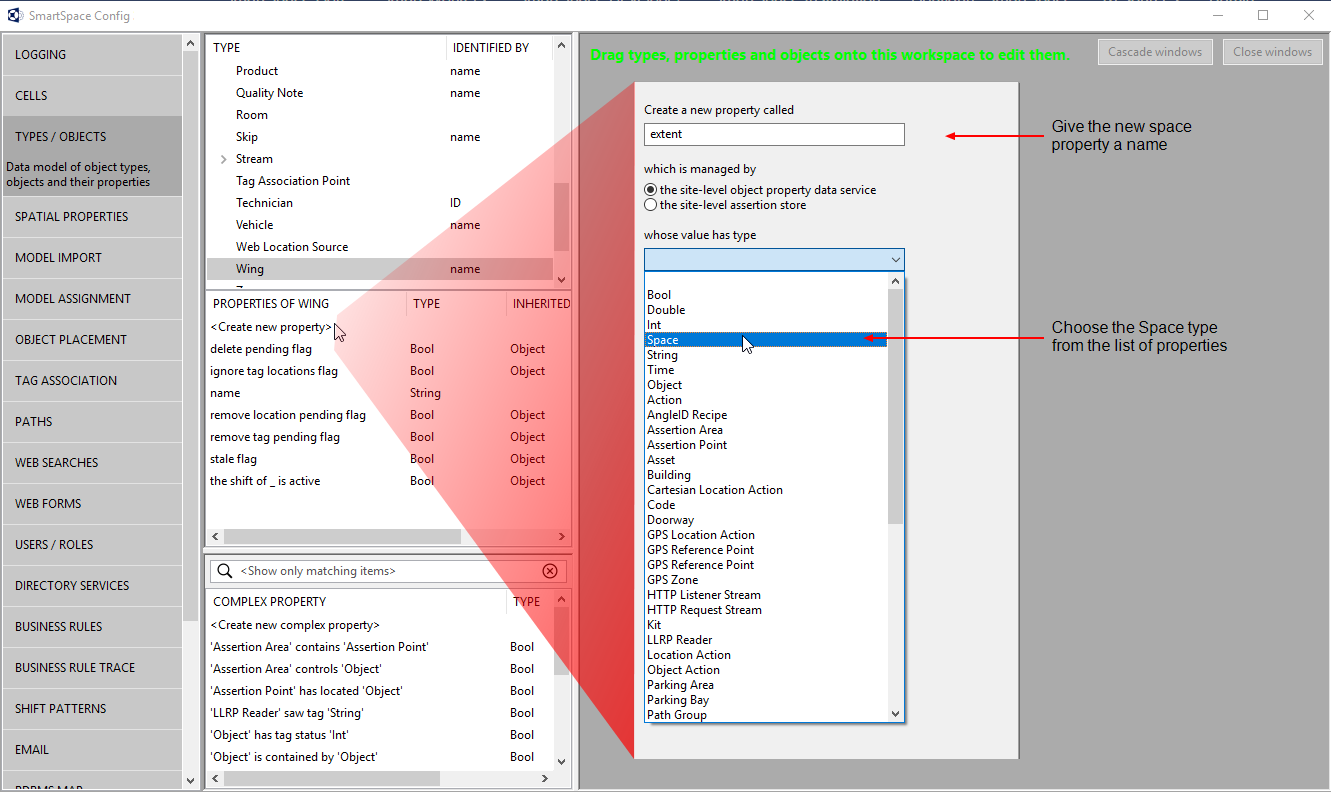
- Click Save.