
Summary
Building location-aware applications with SmartSpace is all about modeling the behavior and interaction of real-world objects in a real-world environment. The task of building and testing such applications is greatly simplified when the types and objects involved can be visualized and manipulated in a virtual representation of the real world.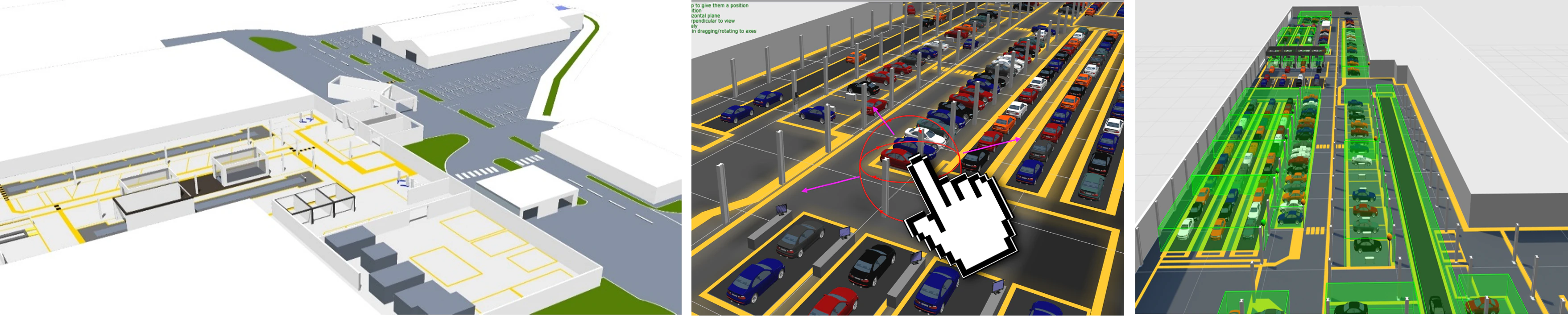
Features
Site visualization includes the following capabilities:- Importing standard graphics formats, including vector (SVG), raster (JPG, BMP, PNG), and 3D models (DAE) into a SmartSpace reps library
- Setting the scale and offset of all reps to match the scale and coordinate system of the application environment
- A scene visualization GUI which renders the environment scene and all located objects which have a representation assigned
- The ability to drag, drop, position and lock “scene reps” in the site visualization
- The ability to assign reps to object types so they appear in the site visualization
- The ability to move objects “virtually” by using the mouse
- The ability to visualize spatial relationships and containment events
Object representations
Introduction to Representations
SmartSpace allows you to create a digital model of a real-world environment that is a physical space filled with physical real-world objects. The digital model needs to be fed location data from sensors in order to keep virtual objects synchronized with their real-world counterparts. In so doing SmartSpace can measure important interactions between objects, and between objects and their environment. In order for humans to be able to describe what should happen and then later see what is happening in the digital model, it is necessary to give the model a visual and volumetric description. To do this, much like the world of computer graphics and gaming, SmartSpace uses visual representations to depict the real-world setting and the objects within it. SmartSpace also uses representations to portray objects to end users, for example in the Web maps feature of Visibility, so that, as with Google Maps, users gain context for the surrounding world, via the background map, and see the location of objects they’re interested in via some object marker representation. SmartSpace has two representation modes:- A 3D mode is available to build up your digital model, using representations for the environment and objects so that you as a human can interact with the model in a natural way. This interface is part of the main SmartSpace Config application.
- A 2D mapping mode is exposed when you license the Visibility component of SmartSpace. This allows you to configure two-dimensional depictions of a setting, and the objects within it, to be delivered through HTML5-compliant browsers in the SmartSpace web map.
What are Representations, and When and How are they Used?
Representations, or reps for short, are everyday graphical types (pictures) that can be used to present objects in a visually representative way on a computer screen. SmartSpace supports a number of different graphical formats that can be used as representations. Details of these types, and importing, transforming and assigning them to objects is the subject of the following sections.3D Graphic Types
SmartSpace uses an industry-standard 3D rendering engine to construct three- dimensional depictions of a scene and the objects within it. Being 3D, the objects in the scene and the background model must support a 3D modeling format. The standard format for the underlying 3D engine used in SmartSpace is COLLADA. COLLADA is an open-standard XML Schema that is widely supported by both open- source and licensed 3D editing tools. In particular, COLLADA DAE is a standard export format of many 3D editing tools including Blender, SketchUp and 3D Studio Max. A description of the process for creating a COLLADA file from an SVG is given in [Editing an SVG and converting it to COLLADA](../../../ITResources/ITDocs/Graphics/SVGtoCOLLADA/SVG-to-COLLADA- conversion.htm). Using a 3D editing tool such as Blender you can create models and apply appropriate textures to create a realistic 3D environment. An example of adding textures to 3D objects and importing them into SmartSpace is given in [Texture baking 3D models](../../../ITResources/ITDocs/Graphics/TextureBaking/texture- baking-3D-models.htm).2D Graphic Types
All user-facing SmartSpace applications use 2D visualization that is entirely web-based and has no third party plugin or hardware dependencies. In this way, SmartSpace applications are readily available to large sets of users by leveraging the 2D rendering capabilities of their browsers and the client- server nature of the SmartSpace Platform to deliver the right visualizations at the right time. To ensure consistent performance across devices and browsers, it is important to keep the complexity of representations as low as possible. SmartSpace supports both raster and vector 2D image formats, including BMP, JPG, PNG, GIF and SVG. Oftentimes it is necessary to convert or create these files from unsupported formats, such as the CAD formats DXF and DWG used to record the major structural elements of a building or site. In such cases, Ubisense has a recommended third-party tool-chain for generating SmartSpace- compatible images from these formats. Examples of the preparation of graphics for use in SmartSpace are given in [Graphics in SmartSpace](../../../ITResources/ITDocs/Graphics/graphics- introduction.htm).Default and Specific Representations
Representations can be assigned to objects in one of two ways; either generically by the Type of the object such that all objects appear the same.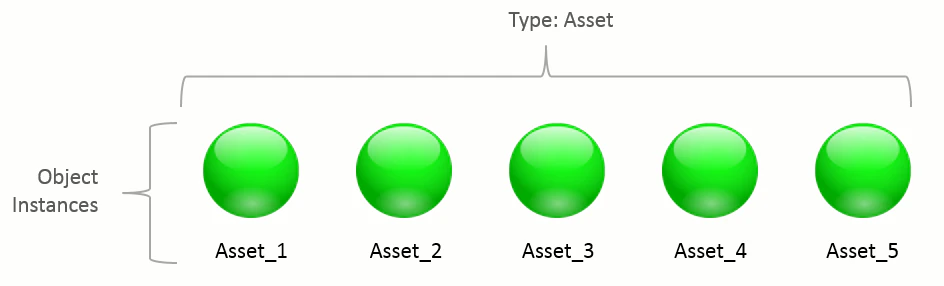
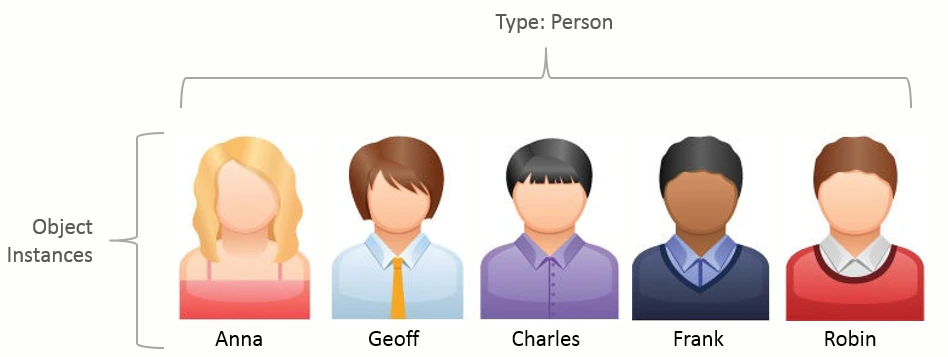
Decorations and Representation Modes in the web map
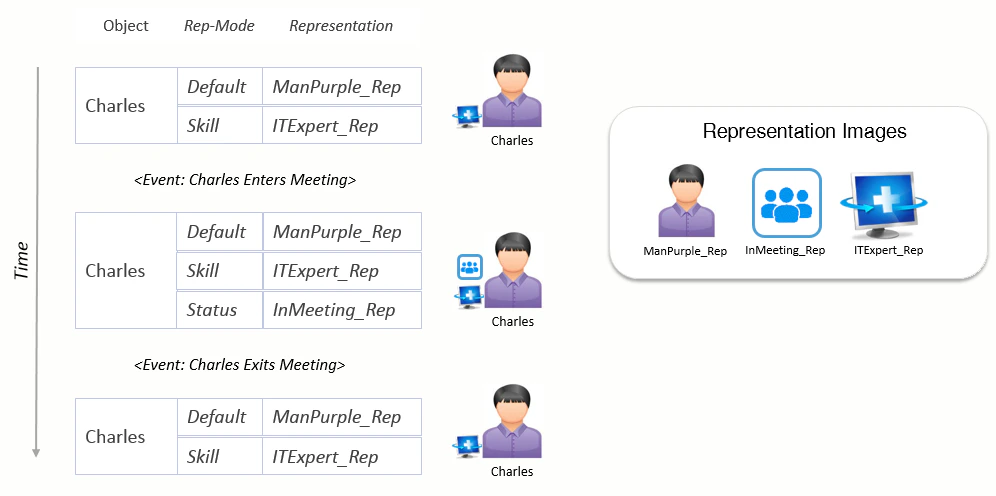
To see an object in the SmartSpace world model or on the SmartSpace web map, it must be assigned at least one representation. When objects are viewed by end-users on the web map, SmartSpace provides a helpful extension which allows many different representations to hang off the main object representation. Such visual augmentations that overlay the primary object rep are called decorations in SmartSpace. Decorations offer a valuable way to communicate status information alongside objects when they are displayed on the web map. In the following example, decorations provide an easy way of highlighting that Anna is a First Aid Officer and that Charles is the office IT Manager. Additionally, decorations help to indicate that Charles is currently in a meeting and is therefore unavailable.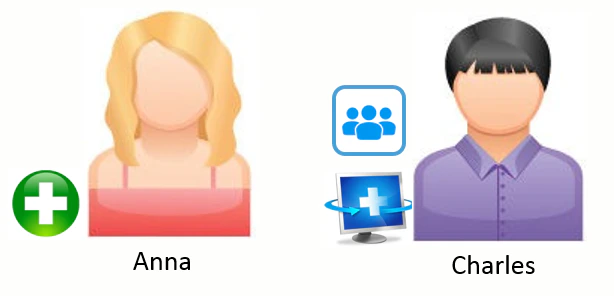
Representation Modes
Representation modes provide a means of displaying different representations of objects depending on context. An object, or object type, can be assigned a different representation in each mode. Web map searches then specify which modes to use to display their results. Rep modes can either be set once for the lifetime of the object or can be set and unset dynamically based on the current state of the object.Representation Modes in Use
- Object representations
- Introduction to Representations
- What are Representations, and When and How are they Used?
- 3D Graphic Types
- 2D Graphic Types
- Default and Specific Representations
- Decorations and Representation Modes in the web map
- Representation Modes
- Representation Modes in Use